Slack integration
Connect your Biel.ai project to Slack and let users interact with your documentation bot from any channel or direct message.
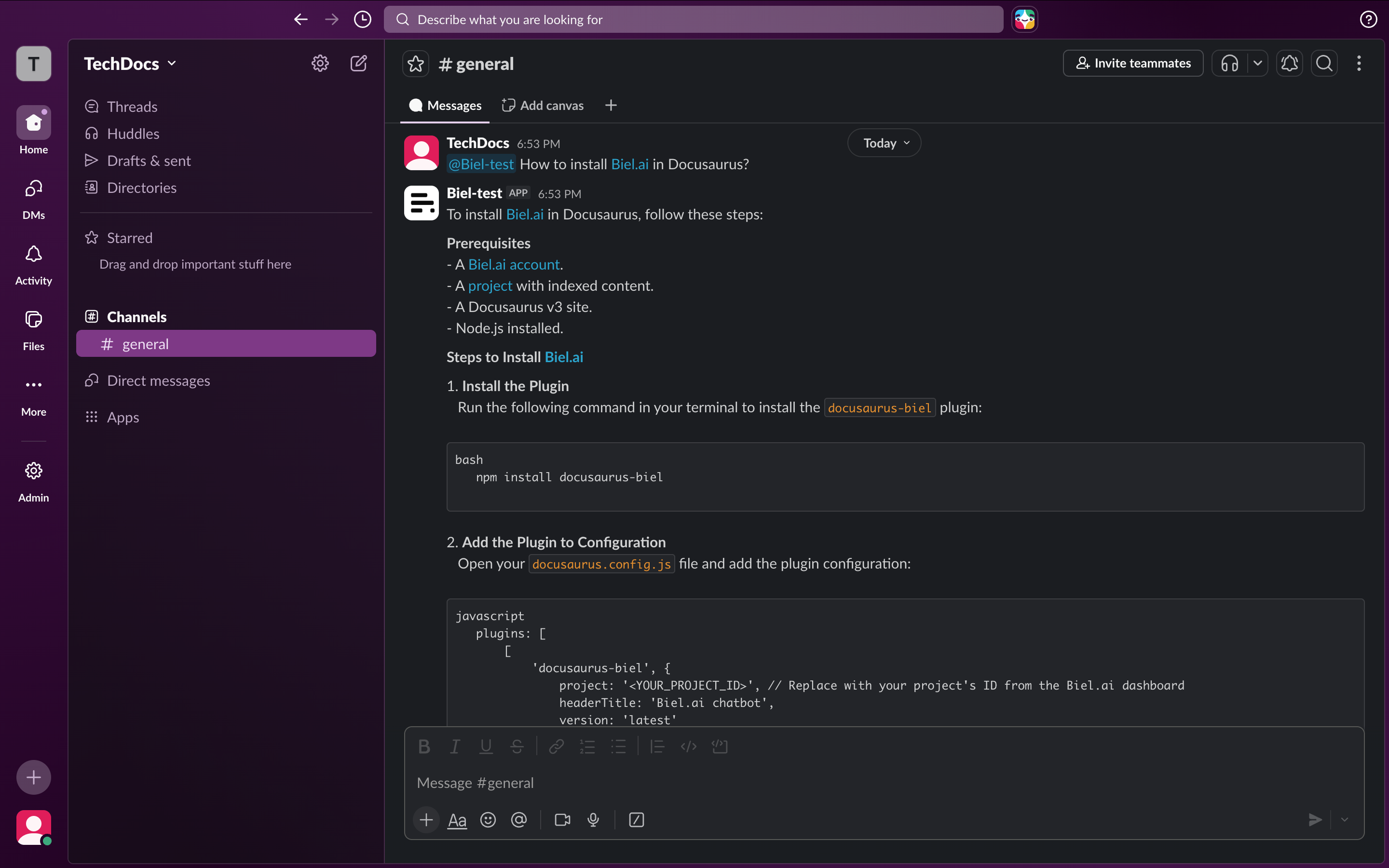
What you can do
- Answer questions in channels: users mention
@Biel.aiand get an answer in a thread. - Per-thread context: each thread has its own conversation history.
- Direct message support: users chat with the bot privately.
- Reset the conversation: mention the bot with
clearinside a thread to reset context.
Prerequisites
- A Biel.ai account with at least one project and indexed documentation.
- A Slack workspace where you have permission to install apps.
- Admin access to your Biel.ai dashboard.
Setup
1. Connect your Slack workspace
- In the Biel.ai dashboard, open the project you want to connect.
- Go to Settings → Integrations in the left sidebar.
- On the Slack card, click Connect.
- You will be redirected to Slack's authorization screen. Review the permissions and click Allow.
- Once authorized, Slack redirects back to Biel.ai and the workspace is connected.
2. Invite the bot to a channel
After connecting, invite the bot to any channel where you want it to respond:
/invite @Biel.ai
For direct messages, users can find the bot by searching its name in the Slack search bar.
Advanced: use your own Slack app
By default the bot appears as Biel.ai. If you'd rather it show up under your
own name (for example Support Assistant), you can create your own Slack app
and point it at Biel — the bot then uses the name and icon you choose, with no
Biel branding.
This replaces the standard Connect button above; you only need one of the two methods.
1. Create your Slack app
-
Go to api.slack.com/apps → Create New App → From scratch, and give it the name you want.
-
Under OAuth & Permissions → Bot Token Scopes, add:
chat:write,app_mentions:read,im:history,users:read,users:read.email.The last two (
users:read,users:read.email) let Biel show who started each conversation — it looks up the sender's email so the chat appears under their address in your dashboard instead of "Unknown". They're optional: if you leave them out, conversations still work but stay unattributed. -
Under Event Subscriptions, set the Request URL to:
https://app.biel.ai/api/v1/slack/webhook/Slack verifies it automatically. Then, under Subscribe to bot events, add
app_mentionandmessage.im. -
Go back to OAuth & Permissions and, in the OAuth Tokens section, click Install to (your workspace name), then Allow on the confirmation screen. This adds the bot to your workspace and generates its Bot User OAuth Token. You need permission to install apps in the workspace; if you don't, an admin has to approve it.
2. Copy the two credentials
- Bot User OAuth Token (
xoxb-...) — from OAuth & Permissions. - Signing Secret — from Basic Information → App Credentials.
3. Connect it in Biel.ai
- In your project, go to Settings → Integrations.
- On the Slack card, click Use your own Slack app (advanced).
- Paste the Bot token and Signing secret, then submit.
Biel figures out the rest (your workspace and bot identity) automatically. Once
connected, invite the bot to a channel and use
it exactly as below — just with your chosen name instead of @Biel.ai.
A Slack workspace runs one Biel-connected app at a time. Your own app replaces the default one for that workspace — don't connect both.
Usage
Asking questions
In a channel, mention the bot followed by your question:
@Biel.ai how do I authenticate with the API?
The bot replies in a thread anchored to your message.
To ask a follow-up with the same context, mention @Biel.ai again inside that thread, and Biel uses the thread's history. Mentions from the channel root always start a new thread with fresh context.
In a direct message, send your message directly, no mention needed:
What are the system requirements?
Resetting a conversation
Each thread keeps its own context for follow-up questions. To reset a thread, mention the bot with clear inside it:
@Biel.ai clear
The bot confirms in the thread, and your next message there starts a fresh conversation. Other threads are unaffected.
Make sure your Biel.ai project has indexed content. You can check this from the Sources tab in your project settings.
Bot token scopes
Biel.ai requests these Slack bot token scopes. The default Connect flow lists them on Slack's authorization screen, and you add them by hand when you use your own Slack app.
| Scope | Required | Why Biel needs it |
|---|---|---|
app_mentions:read | Yes | Detects when users mention @Biel.ai in a channel so the bot can answer in a thread. |
chat:write | Yes | Posts the bot's answers and confirmation messages back into channels and threads. |
im:history | Yes | Reads direct messages sent to the bot so users can ask questions privately. |
users:read | For attribution | Looks up the sender of each conversation so your dashboard shows who started it instead of "Unknown". |
users:read.email | For attribution | Resolves the sender's email so conversations are attributed to that user in your dashboard. |
The two attribution scopes are optional. Leave them out and the bot still works, but conversations stay unattributed in your dashboard. See Conversations show "Unknown" if attribution isn't working.
Troubleshooting
The bot does not respond to mentions
Make sure the bot has been invited to the channel with /invite @Biel.ai. The bot can only see messages in channels it has been added to.
The conversation won't reset
Reset is per thread: mention the bot with clear (@Biel.ai clear) inside the thread you want to reset. There is no channel-wide or slash-command reset.
The bot gives incorrect or outdated answers
Re-index your documentation in the Biel.ai dashboard to make sure the bot is querying the latest content.
Conversations show "Unknown" instead of the user's email
Email attribution needs the users:read and users:read.email scopes. If you connected Slack before these were added, reconnect the integration (or, for your own Slack app, add the two scopes and reinstall the app to your workspace) to grant them. Conversations started after reconnecting will be attributed; older ones stay as they were.
Need help? Contact us or visit the support page.