Microsoft Teams integration
Deploy the Biel.ai bot in Microsoft Teams so your team can ask questions to your documentation from any channel, group chat, or direct message.
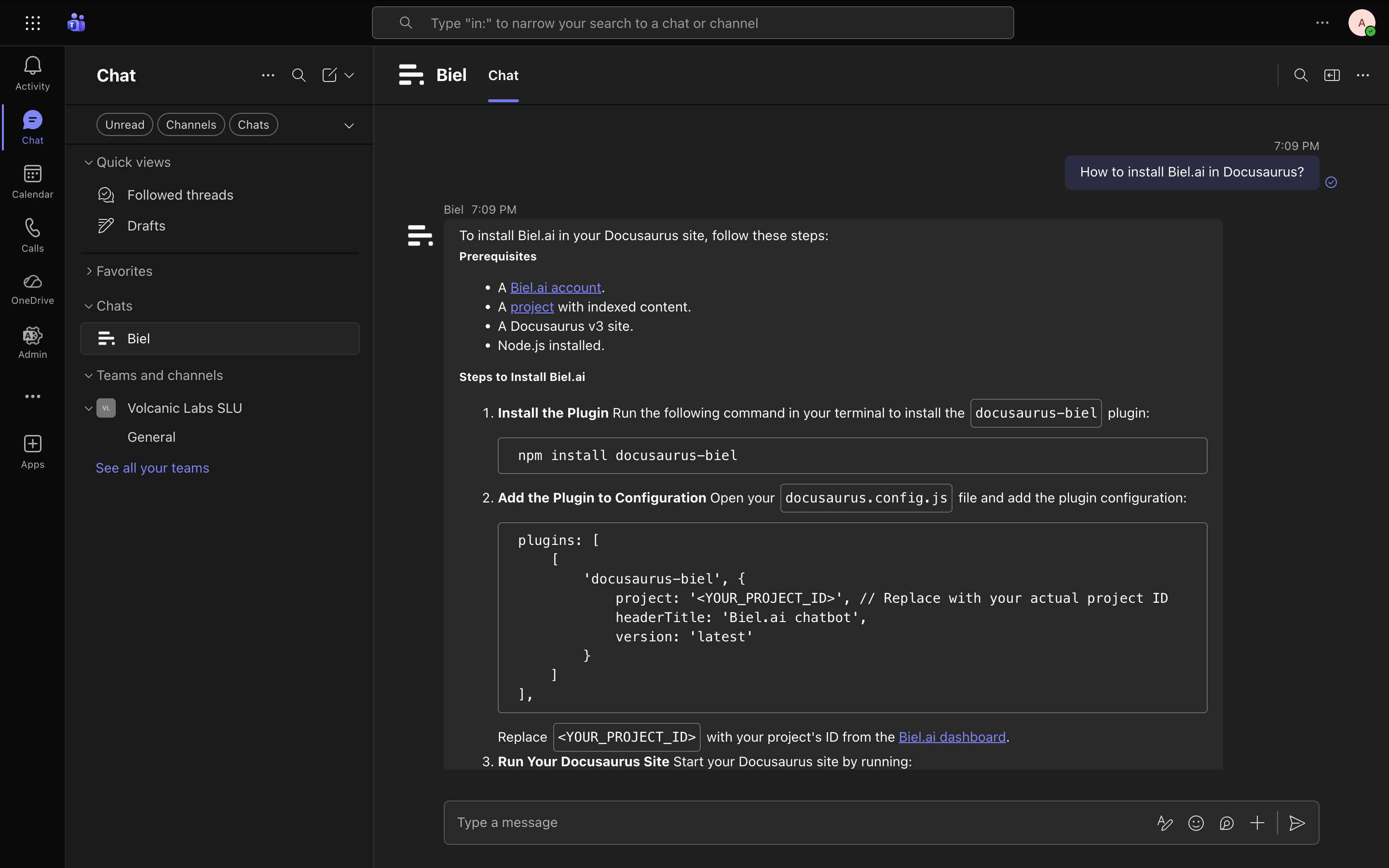
What you can do
- Surfaces: team channels, group chats, and personal chats.
- Per-conversation context: each channel thread, DM, and group chat keeps its own conversation history.
- Reset the conversation: send
/clearto start a fresh conversation context.
Prerequisites
- A Biel.ai account with documentation indexed.
- Teams Administrator access to your Microsoft 365 organization.
Setup
1. Download the app package
In your project settings, open Integrations in the left sidebar.
(Optional) Customize the bot name. By default the bot appears as Biel in Teams. To use your own name, click Customize bot name on the Microsoft Teams card, enter the name, and save. Leave it blank to keep the default.
On the Microsoft Teams card, click Download manifest.
This downloads a biel-teams-app.zip file containing the bot manifest and icons, ready to upload to your Teams Admin Center.
The bot name is baked into the downloaded package, so set it before downloading the manifest. Once the app is installed in Teams, the Customize bot name option is no longer available — renaming an installed app would require uploading a new app version through your Teams Admin Center.
2. Upload the app to your Teams Admin Center
A Teams administrator in your organization must upload the package:
- Open Teams Admin Center.
- Go to Teams apps → Manage apps → Upload new app.
- Upload the
biel-teams-app.zipfile. - Under Permission policies, configure which users or groups can install the app.
If your organization has strict app permission policies, you may need to explicitly allow the Biel app for the relevant users or groups before it becomes discoverable in the Teams app store.
3. Generate a setup token
Back in Settings → Integrations, expand the Microsoft Teams card and click Generate token.
Copy the setup token that appears.
4. Connect the bot
Open a chat with the Biel bot in Teams (search for Biel in the Teams app store and click Add) and send the setup token as your first message.
The bot will confirm the connection:
Connected! This Teams workspace is now linked to the [Project Name] project.
You can start asking questions.
From this point on, all messages from your Teams organization are routed to the linked Biel project.
The setup token is single-use. It is consumed when the connection is established. If you ever need to reconnect or link a different project, generate a new token from the project settings page.
Usage
Asking questions
Send any message to the bot.
You: How do I reset my password?
Biel: To reset your password, go to Settings → Security → Reset Password and follow the steps shown.
You can ask follow-up questions:
You: What permissions do I need for that?
Biel: You need the Account Owner or Admin role to access the Security settings.
In a channel, mentioning the bot from the channel root opens a new thread anchored to your message, and replies inside that thread share context. To start a fresh conversation, post a new message from the channel root.
Starting a new conversation
Send /clear to reset the current thread or chat. The bot confirms, and your next message starts a fresh conversation.
Make sure your Biel.ai project has indexed content. You can check this from the Sources tab in your project settings.
Troubleshooting
The bot doesn't appear in the app store
Check that the app has been approved and that the user is covered by the configured permission policy in Teams Admin Center.
The bot asks for a setup token instead of answering questions
The Teams workspace has not been connected to a Biel project yet. In Settings → Integrations, expand the Microsoft Teams card, generate a token, and send it to the bot as described in step 4.
The bot doesn't respond after sending the token
Make sure you are sending the token exactly as shown (no extra spaces or characters). If the problem persists, generate a new token and try again.
The bot doesn't respond to questions
Ensure your Biel.ai project has documentation indexed. Contact Biel support if the issue persists.
Responses are incorrect or outdated
Re-index your documentation in the Biel.ai dashboard to make sure the bot is querying the latest content.
Need help? Contact us or visit the support page.