YouTube
Add tutorials, demos and recorded talks to your assistant using their YouTube URLs. Biel.ai extracts a transcript when captions or accessible audio are available.
Video content is available in chat responses. It does not appear in the widget's default page search.
Add a video
-
In the Biel.ai dashboard, select your project.
-
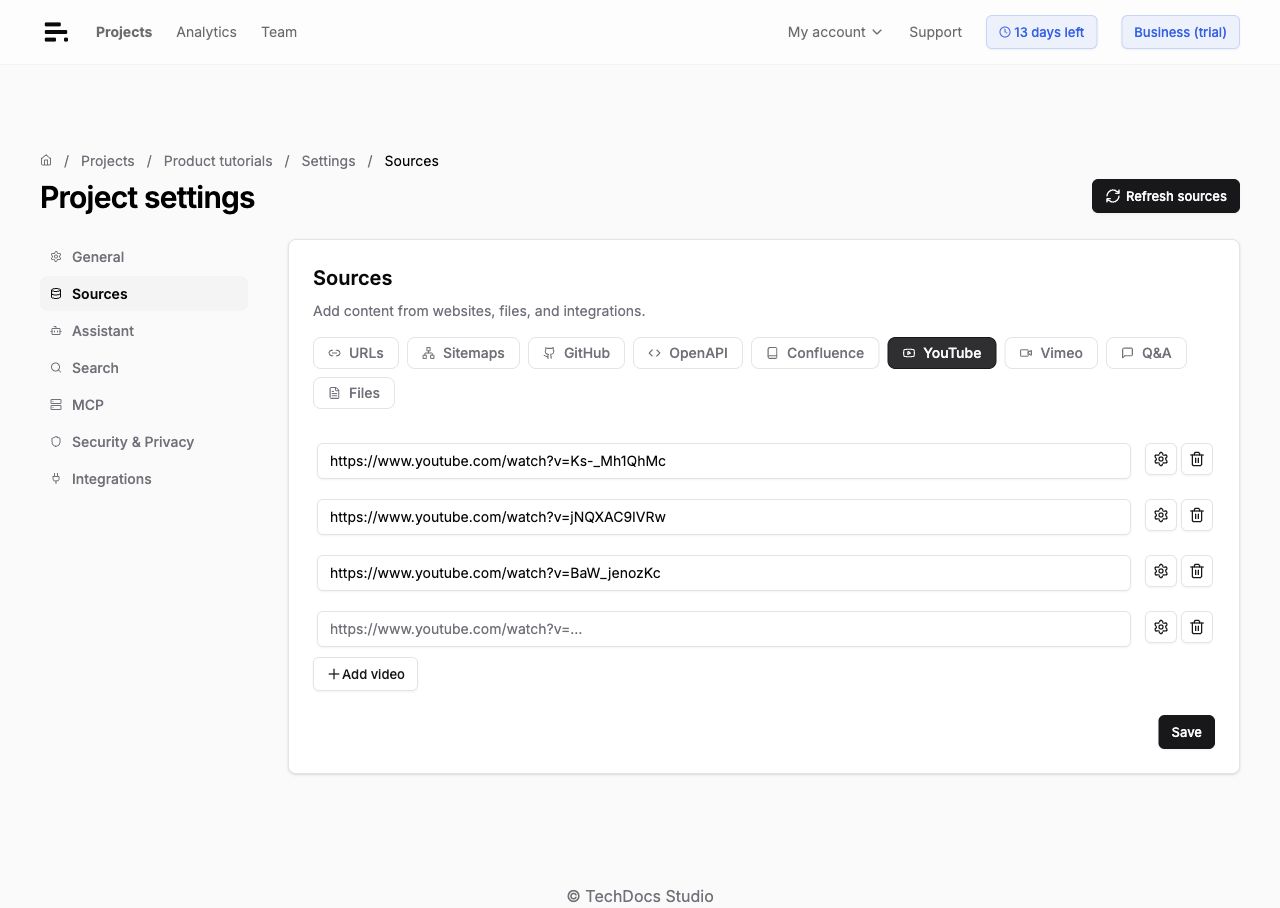
Go to Settings > Sources > YouTube.
-
Enter a Video URL, such as
https://www.youtube.com/watch?v=Ks-_Mh1QhMc. -
To add more videos, click Add video.
-
Click Save, then Refresh sources.
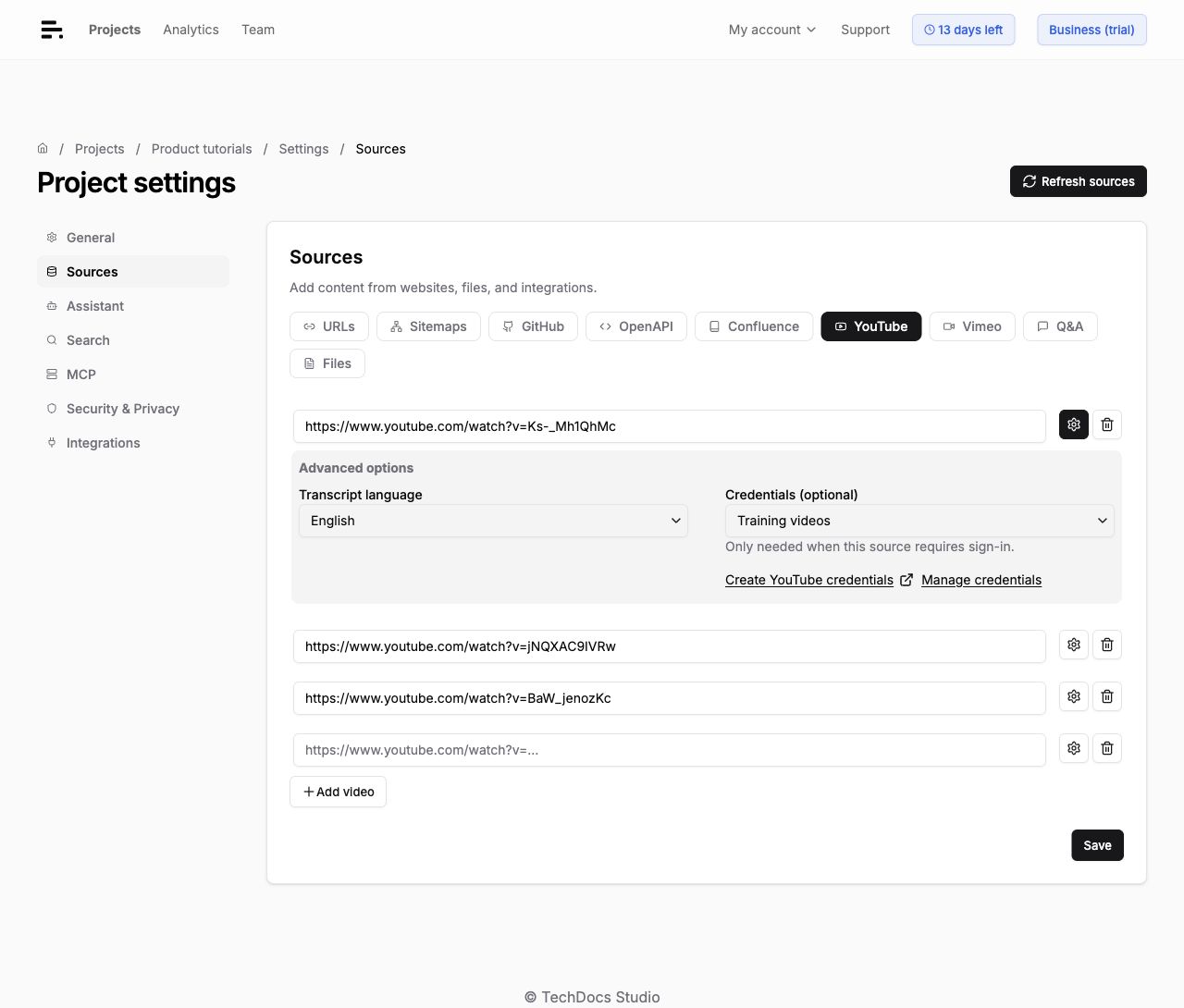
Public videos usually work without saved credentials. To change the transcript language or use saved credentials, click the video’s settings icon to open Advanced options. Choose a language, or select Other… and enter a Language code, such as fil or pt-BR. The default is English. Select another language if needed for the video.
Transcript and indexing
Biel.ai indexes the full available transcript as passages with timestamps. Your assistant uses those passages to answer questions about specific details throughout the video. Biel.ai reads available captions or transcribes accessible audio.
Biel.ai keeps the extracted transcript privately with your project. This lets it rebuild the index without transcribing unchanged audio again, when a compatible transcript is available. Video access is still checked during refresh.
Visual details that appear only on screen are not included. Add slides or supporting documents as file sources if they contain essential information.
After Refresh sources finishes, test your assistant with a question about a specific part of the video. Biel.ai uses the transcript passages directly and does not generate a separate summary. Public video citations can link to the relevant time. Private video links are omitted from citations. Check the project’s Logs if processing fails.
Private videos
Private videos are supported on all plans and require an account authorized to access them. An ordinary video URL does not grant access to private content.
- Open the video’s Advanced options and click Create YouTube credentials.
- In the new tab, enter a name, such as
Training videos. - Upload a Cookies file in Netscape
.txtformat from a dedicated account with access to the videos. - Click Save credentials and return to Sources.
- Select the credentials for each video that needs them. Click Save, then Refresh sources.
You can reuse saved credentials for several videos and projects in the same team. See Credentials to change credentials, limit availability, disable access or delete credentials.
YouTube may reject authentication for some videos or account restrictions. Check the account’s access and replace an expired cookies file.
Source credentials let Biel.ai read the video. To restrict who can query its content through your assistant, see project access control.
Remove a video
Click the video’s delete icon, then Save. Click Undo before saving to cancel the removal.
Troubleshooting
- Use an individual video URL. Channel and playlist URLs are not supported.
- A public video may still be unavailable if its captions and audio cannot be accessed.
- Live streams, protected audio and videos over one hour are not supported.
- Changing Transcript language requires Save and Refresh sources.
- Refreshing unchanged content reuses its transcript where possible.