Credentials
Save credentials once and reuse them for several sources or projects. Public sources usually need only a URL.
Credentials let Biel.ai sign in to your content provider. API keys let your applications use the Biel.ai API.
Credentials are available on all plans. Use them to read websites behind a login, private repositories, Confluence spaces and private videos. To restrict who can query your assistant, use a private project, available on Business and higher plans.
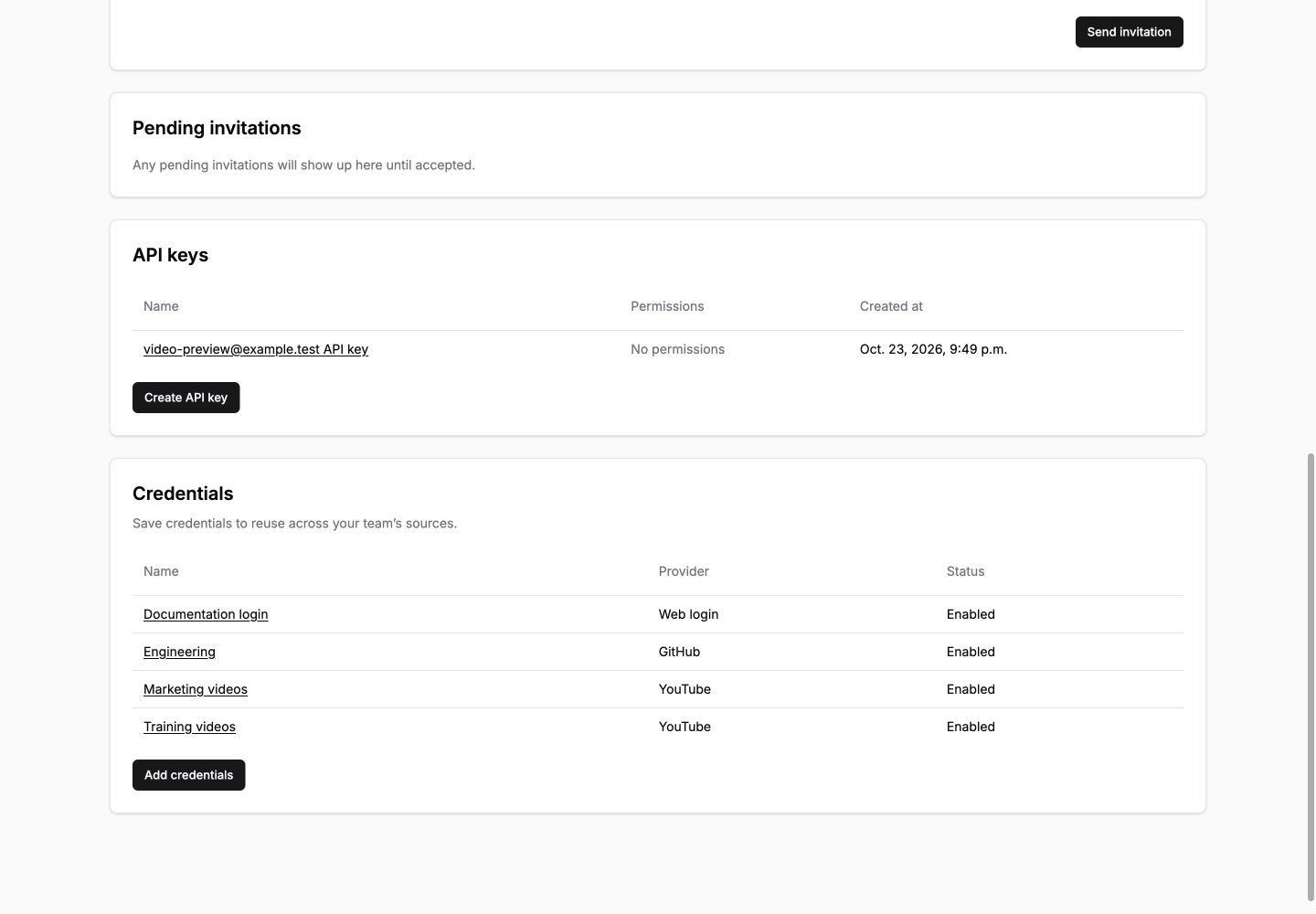
Add credentials
- Open Team, find Credentials below API keys, and click Add credentials.
- In the dialog, choose Web login, GitHub, Confluence, YouTube or Vimeo.
- Enter a name and the required credentials.
- Keep Available to all projects selected, or clear it and check each project under Allowed projects.
- Click Save credentials to return to the team’s list.
Only team administrators can add, edit, disable or delete credentials. Administrators and Maintainers can select saved credentials in Sources without viewing their saved values.
| Provider | Credentials |
|---|---|
| Web login | A login URL, username or email, and password for each sign-in step. |
| GitHub | An access token for the repositories you want to read. |
| Confluence | The site URL, your Atlassian email and an API token. |
| YouTube | A Netscape .txt cookies file from a dedicated account with video access. |
| Vimeo | An access token, a video password, or both. |
Web login starts with one login URL, username or email, and password. Open Advanced options to change field selectors, redirects or URL matching.
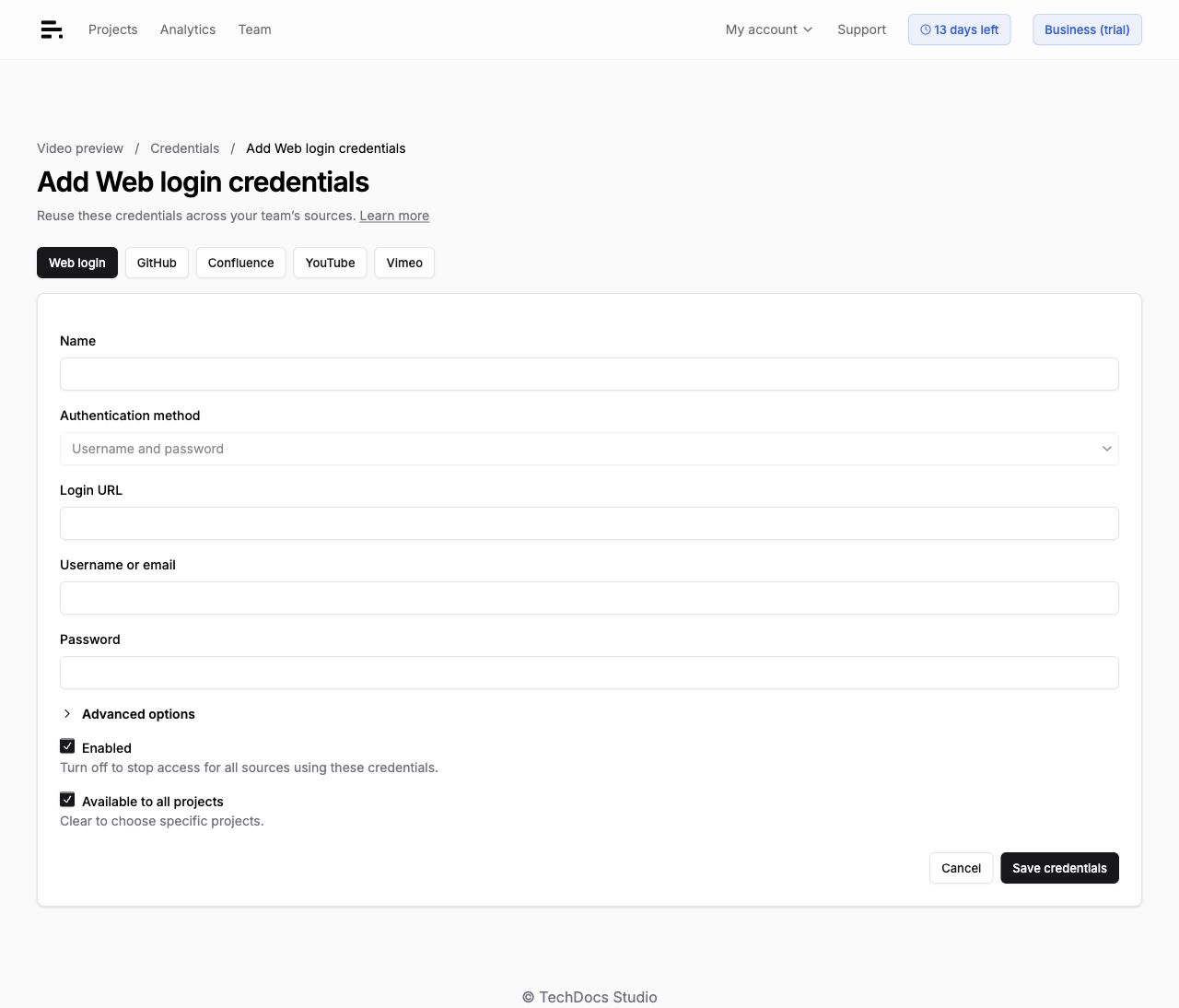
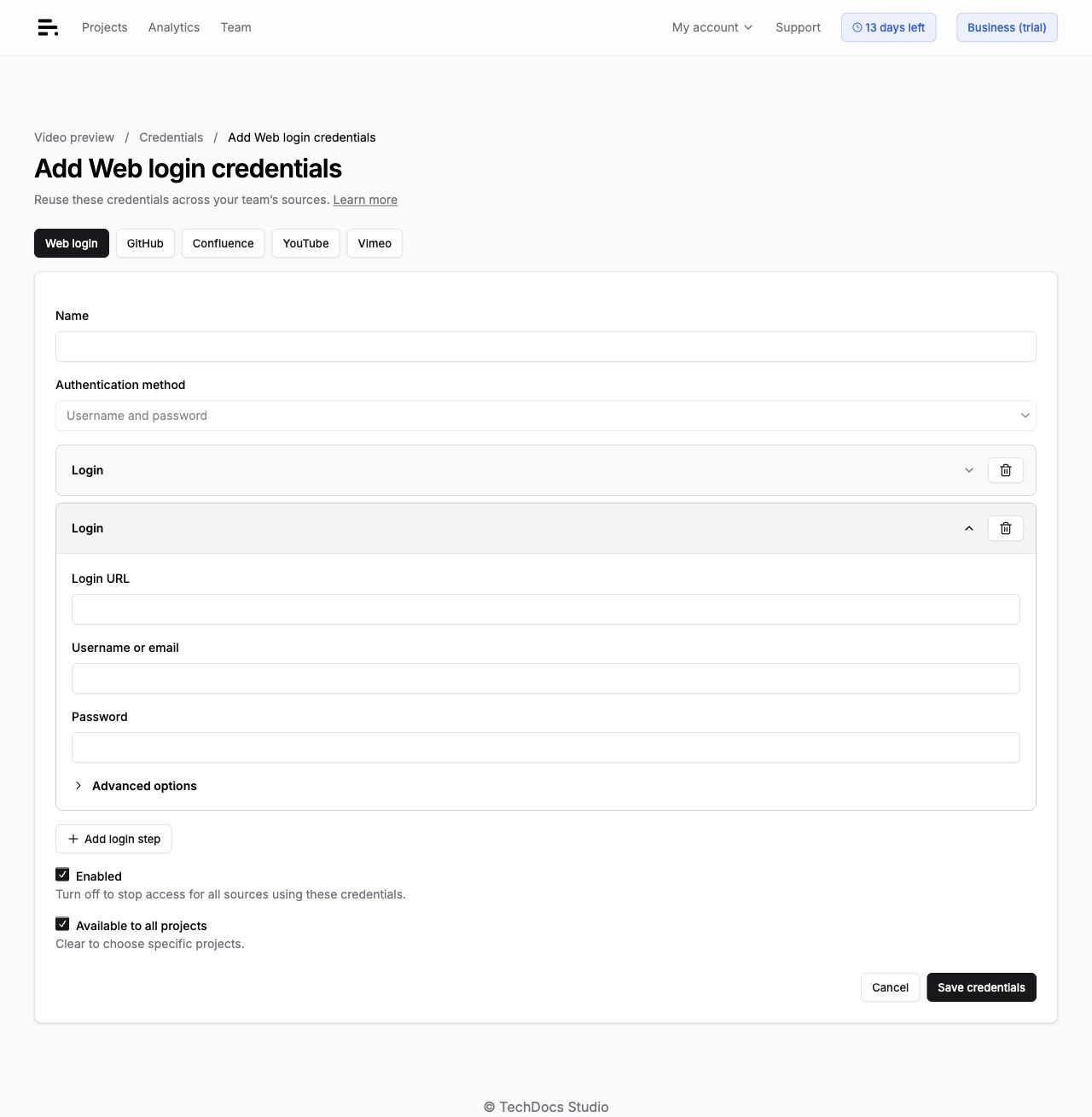
If the website requires separate sign-ins, enable Use multiple login steps, then click Add login step for each additional login. For example, you may need to sign in to your company’s identity provider and then to its documentation site. Set each Step name and Order in its Advanced options. Existing credentials with several logins keep all their steps. To return to a single login, remove the extra steps and save first.
For one login that asks for your username on one screen and your password on the next, enable Username and password on separate screens instead. See Private content.
Use this login step controls one step. Clear it to skip that step. Enabled controls access for all sources using these credentials.
Use saved credentials
Open your project’s Settings > Sources. Add a source URL, open its Advanced options and choose Credentials (optional). Each source shows compatible credentials available to that project. Confluence credentials must match the source’s site.
Choose Create … credentials to open the matching editor in a new tab. Save the credentials and return to Sources. Your source inputs stay in place, and the saved credentials are selected for that source. Click Save, then Refresh sources.
Several sources can use the same credentials. For example, select the same GitHub credentials for two repositories, or the same YouTube credentials for two videos. Choose Public access to use a source without saved credentials.
For GitHub or Confluence sources created with their own credentials through the API, Keep existing credentials preserves them when you edit the source. Choose Public access to remove them, or select saved team credentials to replace them.
Saving credentials does not process your sources. Save their selection in Sources, then click Refresh sources.
Update or remove access
Open Team and select a name in the Credentials list. Click Credentials in the breadcrumb to return to that list, or the team name to return to Team. Leave credential fields blank to keep their saved values. After replacing credentials, click Save credentials, then refresh the affected projects’ sources.
To stop access, clear Enabled and click Save credentials. This affects every source using these credentials. Their content becomes unavailable to the assistant and search. Enable the credentials and refresh the affected projects’ sources to restore access.
To delete credentials, first remove them from every source listed under Sources using these credentials and save those sources. Then click Delete credentials at the top of the page and confirm. This permanently deletes the saved values.
Troubleshooting
| Problem | What to check |
|---|---|
| Cannot select saved credentials | Use the same team and provider as the source. Check Enabled, Available to all projects or Allowed projects. Confluence credentials must match the source’s site. |
| Sign-in fails | Confirm the provider account can open the content. Replace expired tokens, passwords or cookies, save, then refresh the project’s sources. |
| Content stopped appearing after credentials changed | Check that the credentials are enabled and available to the project, then click Refresh sources. |
| Cannot delete credentials | Remove them from each source under Sources using these credentials and save those sources first. |
For provider-specific setup and restrictions, see GitHub, Confluence, YouTube or Vimeo.
Use with the Sources API
Copy Credential ID from beneath the name and pass it as connector when adding a source:
{
  "repositories": [
    {
      "url": "https://github.com/example/docs",
      "connector": "f6c998be-7db7-42a8-9b78-ea2191248c73"
    }
  ]
}
The credentials must be enabled, compatible and available to the project. Omit connector or use null for public access. Create and manage credentials in the dashboard. Credential management is not available through the REST API.