Actions
Actions are clickable buttons that Biel.ai can add to assistant answers. Each action has a trigger that describes when the button should appear.
For example, you can show a Contact support button when a user reports a problem, or a Book a call button when they ask about enterprise pricing.
Unlike suggested questions, which appear when the chat opens, actions only appear when their trigger matches the user's message.
Common uses
Actions give users a clear next step without making them leave the conversation first.
| Button | Appears when |
|---|---|
| Open a support ticket | A user reports a problem the assistant cannot resolve. |
| Book a call | A user asks about pricing or enterprise plans. |
| Start a trial | A user asks how to get started. |
How actions work
- You create an action with a name, trigger, button label, and URL.
- When a user sends a message, Biel.ai checks the message against each action's trigger.
- If a trigger matches, Biel.ai adds the corresponding button to the answer.
- An answer can contain no actions, one action, or several actions.
- In the web widget, the action appears as a button. In integrations such as Slack, it appears as a link.
The trigger is sent to the LLM to determine whether the action is relevant, but users never see it.
The URL is attached to the button by Biel.ai. It does not appear in the answer text unless you include it there yourself.
Action fields
| Field | Description |
|---|---|
| Name | Internal identifier for the action. Use only letters, numbers, hyphens, and underscores, for example contact_support. Each name must be unique within the project. |
| When to use | Plain-language description of when the action should appear. Biel.ai uses this as the trigger, so describe the user's intent and situation as specifically as possible. |
| Button text | Label shown to the user, for example Contact support. |
| URL | Address that opens in a new tab when the user clicks the button. The URL can include conversation placeholders. |
Pass conversation context
When an action opens a form or external tool, that destination does not automatically receive the conversation context.
You can include placeholders in the URL to pass useful information, such as the conversation ID, the user's latest question, or a link back to the conversation.
For example:
https://support.example.com/new?conversation_id={chat_id}
Before showing the button, Biel.ai replaces each placeholder with its value.
You can map these values to any field your destination supports, such as a subject line, hidden form field, or query parameter.
Available placeholders
| Placeholder | Value |
|---|---|
{chat_id} | The conversation ID. Use the Conversation ID filter on the project's Chats tab to find it. |
{chat_url} | Direct link to the conversation in the Biel.ai dashboard. The viewer must be signed in to your team. |
{question} | The user's most recent message, up to 500 characters. |
Placeholder values are URL-encoded. Characters such as & and ? in a user's message therefore cannot break the rest of the URL.
If a placeholder has no value, Biel.ai replaces it with an empty value rather than leaving the placeholder text in the URL.
Example
The following support action passes the user's latest question and a link to the conversation:
https://support.example.com/new?subject={question}&conversation={chat_url}
This can help the person receiving the request understand what the user was asking without requiring the user to repeat the context.
Configure an action
-
In the Biel.ai dashboard, select your project.
-
Click Settings.
-
Open Assistant in the left sidebar and, under Actions, click Add action.
-
Enter the Name, When to use, Button text, and URL. Use a name such as
contact-supportwithout spaces; the button text can beContact support.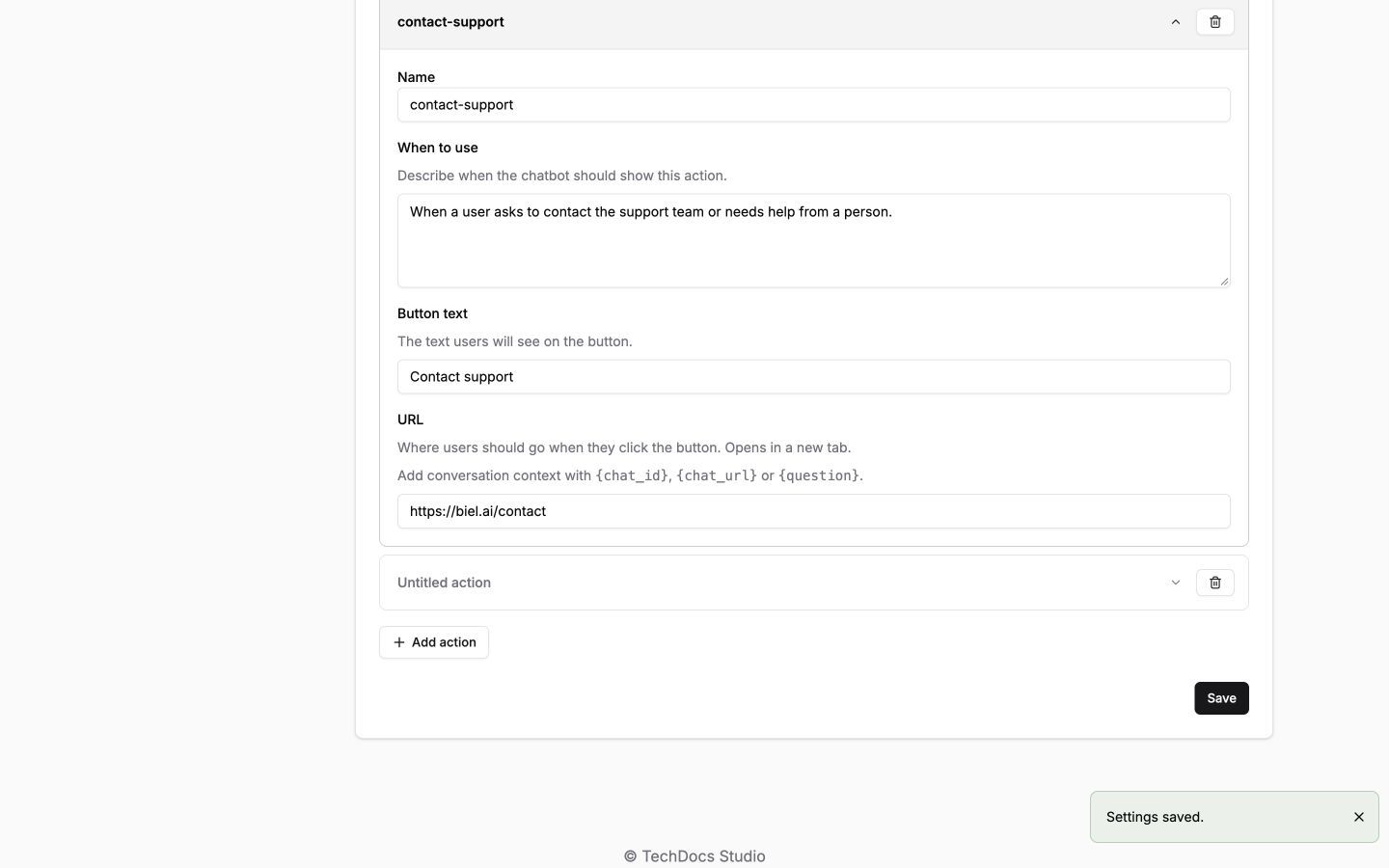
-
Click Save on the Actions card.
Biel.ai rejects URLs that contain unrecognized placeholders, so placeholder typos are caught when you save the action.
You can add as many actions as you need.
After creating an action, open the assistant on your site and send a message that should match its trigger. Verify that the expected button appears.
Write effective triggers
The When to use field determines whether Biel.ai considers an action relevant. Clear, specific triggers make actions more likely to appear at the right time.
- Describe the user's intent. Write
When the user asks to talk to a human, reports a billing problem, or expresses frustrationinstead ofShow the support button. - Name the situations the action covers. Broad triggers can cause buttons to appear too often. For example,
When the user needs helpcould match almost any support question. - Keep triggers distinct. If multiple actions have overlapping triggers, Biel.ai may show more than one button. This is useful when both actions are relevant, but avoid overlap when it would confuse the user.
For example, this trigger is too broad:
When the user needs help.
A more useful trigger describes the situations that should lead to the action:
When the user reports a bug, says something is not working, or asks to talk to a person.