Web search (beta)
Augment chatbot answers with real-time results from the internet when your documentation does not fully cover a question.
Enabling web search means your chatbot can return answers your team did not write, review, or approve. Responses may be inaccurate, outdated, or inconsistent with your product's terminology and tone, and you have limited control over which sources are used.
How it works
When web search is enabled, the chatbot first looks for an answer in your documentation. If the documentation is not enough, it searches the web and combines both sources in the response.
A web search is only triggered when needed, and only counts as 5x interactions when it actually contributes content to the answer.
Before you enable web search
Web search is a fallback, not a substitute for good documentation. Before turning it on, consider whether the gap is better closed by improving your docs:
- Accuracy: Web sources may contradict your documentation, reference outdated versions of your product, or surface answers from competitors and unofficial forums.
- Brand voice: Answers pulled from the web will not match your product's terminology, tone, or style.
- Support burden: Incorrect answers sourced from the web can generate support tickets that are harder to trace, since the source is not under your control.
In most cases, expanding your documentation is the safer long-term choice. Web search is most appropriate for narrow, well-defined gaps such as third-party integrations or ecosystem topics that are not worth maintaining in your own docs.
You can constrain web search behavior by extending your project's prompt, for example by restricting which topics the chatbot should answer from the web, instructing it to prefer official sources, or requiring it to flag when an answer comes from outside your documentation. See Custom prompt for details.
Enable web search
Only Administrator or Maintainer roles can manage projects. See Manage roles.
-
In the Biel.ai dashboard, select your project.
-
Click Settings.
-
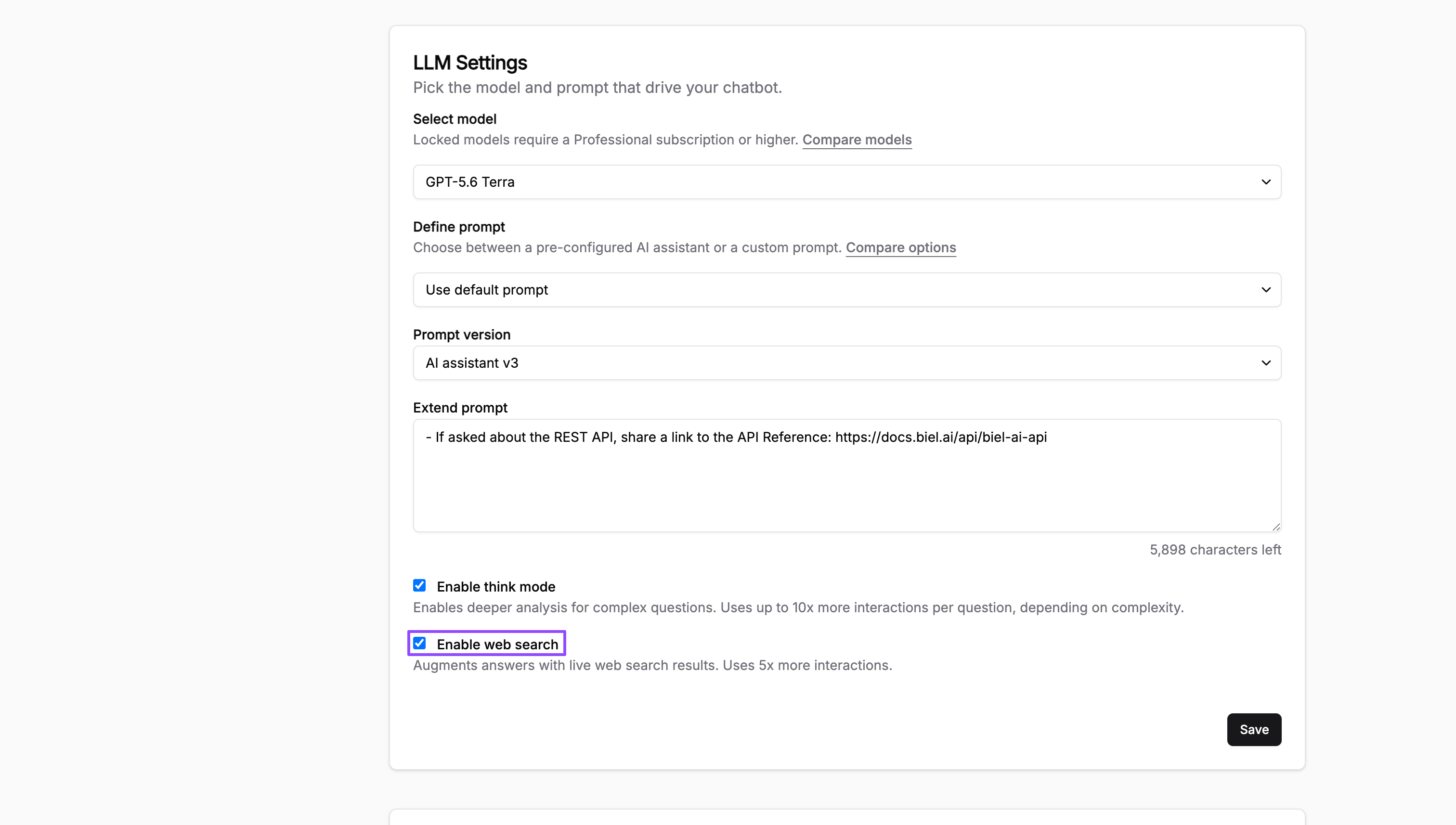
Open Chatbot in the left sidebar and, under LLM Settings, check Enable web search.
-
Click Save.