Search filters
Search filters let users narrow search results by category. Each filter maps a label to a URL pattern — when selected, only matching results appear.
Configure filters
Only Administrator or Maintainer roles can manage projects. See Manage roles.
-
In the Biel.ai dashboard, select your project.
-
Go to Settings > Search.
-
Under Search Filters, add one or more filters. Each filter requires:
- Label: The label shown in the widget (for example,
API,Guides,Blog). - URL pattern: A case-insensitive regular expression matched against result URLs. Use
\.to match a literal dot and.*to match any characters. See Pattern examples for common use cases.
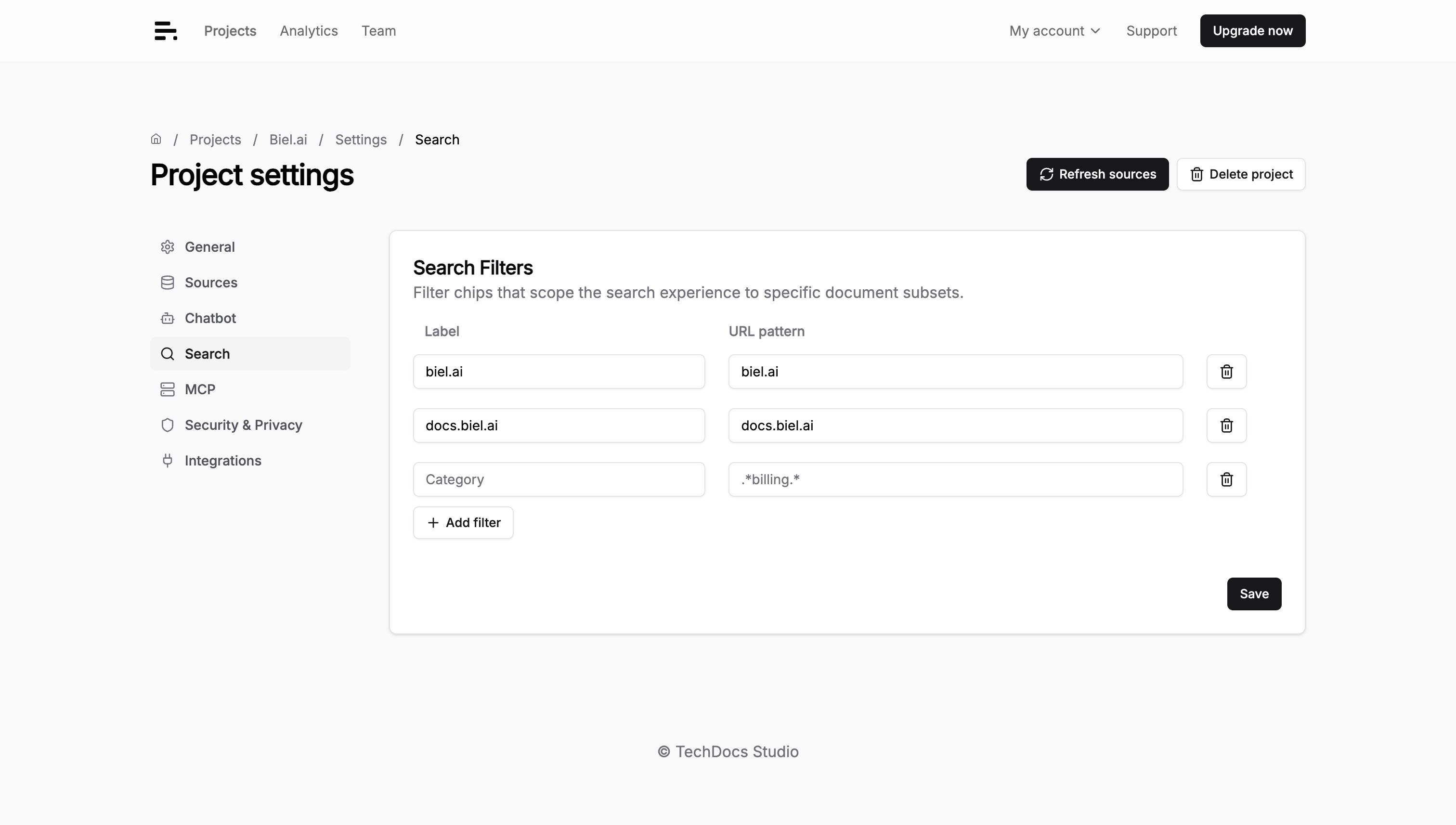
- Label: The label shown in the widget (for example,
-
Click Save.
Pattern examples
| Goal | Pattern | Matches |
|---|---|---|
| Pages under a path | /docs/api/.* | https://example.com/docs/api/overview, https://example.com/docs/api/auth/tokens |
| A specific subdomain | docs\.example\.com | https://docs.example.com/guide, https://docs.example.com/api/v2 |
| Any subdomain | .*\.example\.com | https://docs.example.com/guide, https://blog.example.com/post |
| URLs containing a keyword | release-notes | https://example.com/release-notes/v2, https://example.com/docs/release-notes |
Enable filters in the widget
When you configure filters, the search widget shows a site dropdown beside the navigation hints. The dropdown does not appear if the project has no search filters. It starts at All sites and lets visitors choose one of your configured filters.
Use all-sites-text="All documentation" to replace the All sites label when the dropdown is visible:
<biel-search-button
  project="YOUR_PROJECT_ID"
  all-sites-text="All documentation"
>Search</biel-search-button>
Set hide-filters to true to hide the dropdown:
<biel-search-button
  project="YOUR_PROJECT_ID"
  hide-filters="true"
>Search</biel-search-button>
Customize filter appearance
To style the dropdown, use the --biel-dropdown-* CSS custom properties. For details, see Styles.
Limitations
- Filters are available in
<biel-search-button>and<biel-search>, not in the chat widget. - Each filter title must be unique within a project.
- Filters do not affect the relevance ranking of results.