Ask AI assistant widget for Fumadocs
Add an AI assistant or AI search widget to your Fumadocs site using Biel.ai's React components.
Prerequisites
- A Biel.ai account. If you don't have one, sign up for free.
- A project created in your Biel.ai dashboard. Follow the Quickstart guide to create one.
- A Fumadocs site ready to install Biel.ai.
- Node.js installed.
Add the assistant widget
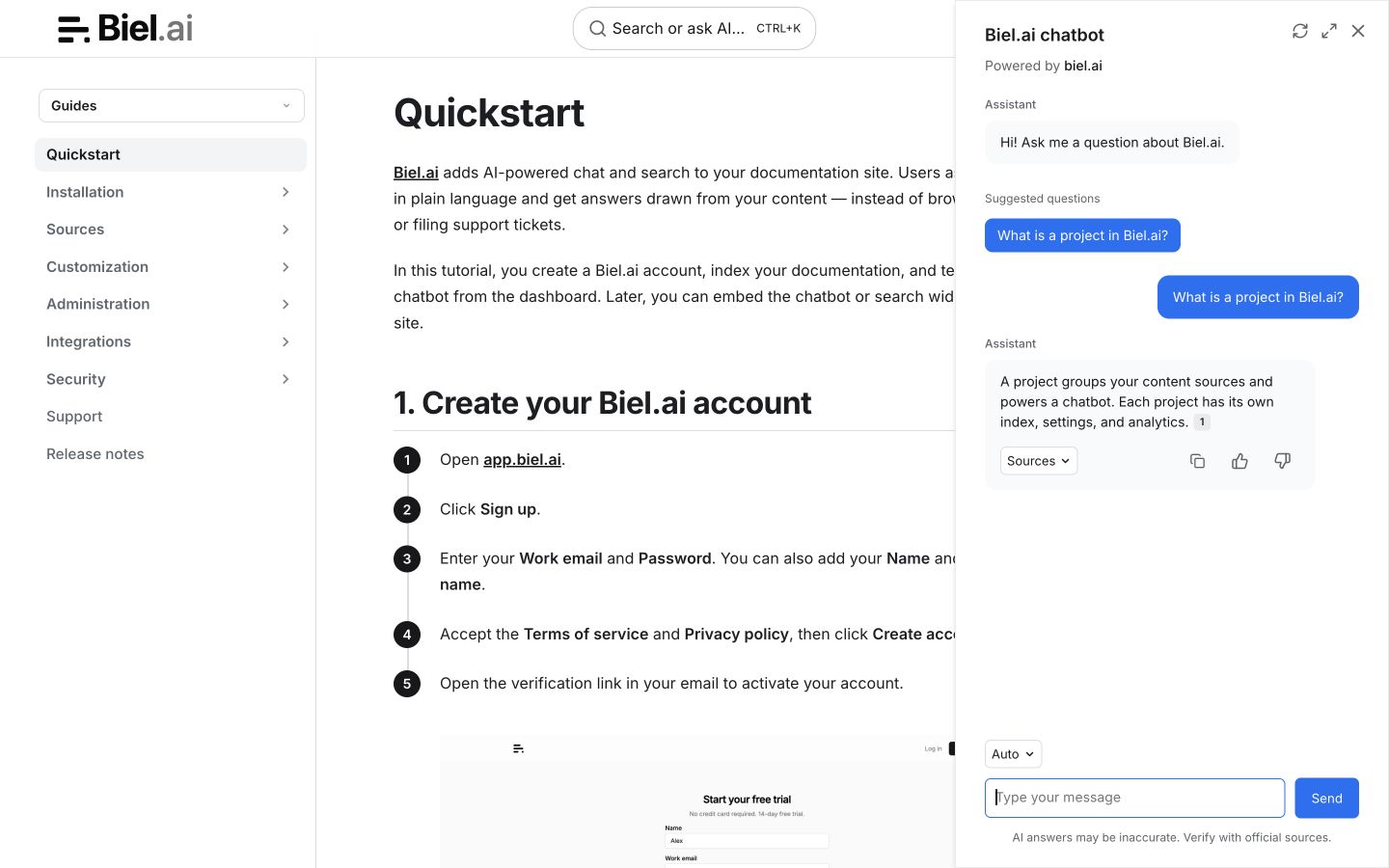
-
Install Biel.ai for React:
npm install biel-react -
Create a client component at
components/BielWidget.tsx. The React wrapper uses browser lifecycle APIs, so keep it behind a client boundary:'use client';import { useEffect } from 'react';import { BielButton } from 'biel-react';import { defineCustomElements } from 'biel-search/loader';export default function BielWidget() {useEffect(() => {defineCustomElements(window);}, []);return (<BielButtonproject="<YOUR_PROJECT_ID>"header-title="Biel.ai assistant"button-position="bottom-right"modal-position="bottom-right"button-style="dark">Ask AI</BielButton>);}Replace
<YOUR_PROJECT_ID>with your project's ID from the Biel.ai dashboard. -
In your existing
app/layout.tsx, import the client component and widget stylesheet:import BielWidget from '@/components/BielWidget';import 'biel-search/dist/biel-search/biel-search.css';Render
<BielWidget />inside your existing<body>, alongsideRootProvider. Keep the root layout's HTML, fonts, metadata, and existing content. See Next.js Server and Client Components for client boundaries. -
Start your Fumadocs project by running
npm run devand verify that the assistant appears and functions correctly on your site.
Next steps
- Customize the widget's appearance, behavior, and tone.
- Connect integrations like GitHub Actions, MCP, or Zapier.